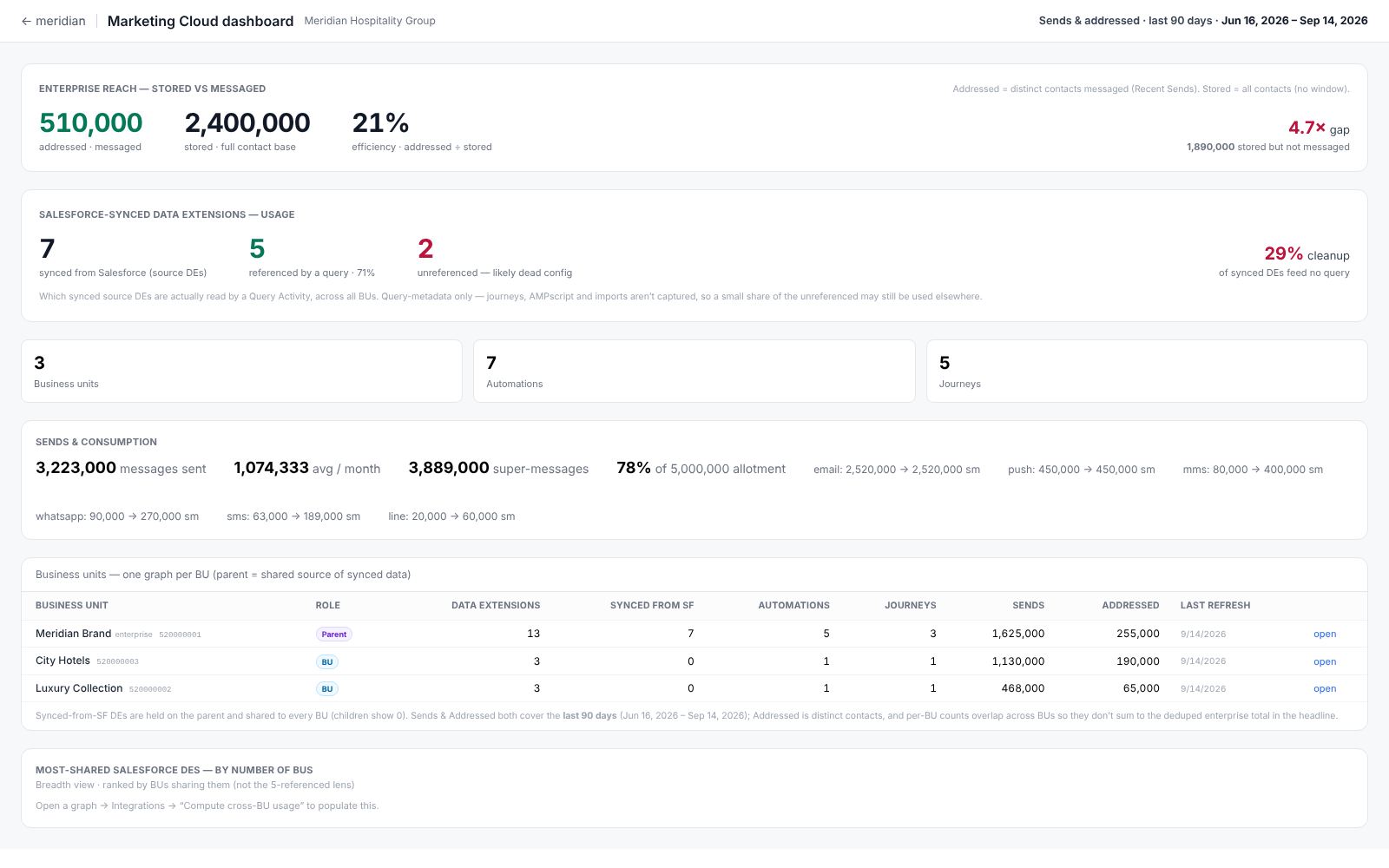
Stood Flows audits a Marketing Cloud account the same way it audits a Salesforce org: it reads the account, builds a graph per business unit, and gives you a folder you can refresh, share, and read a dashboard from. The point is to see what an account actually sends, who it reaches, and how much of its build is dead weight — without logging into Marketing Cloud and clicking through Setup.
What the module covers
A scan pulls the things that drive cost and clutter: sends and super-message consumption over a rolling window, the contacts an account addresses versus the contacts it stores, the data extensions synced in from Salesforce, and how those synced sources are actually used. Each business unit becomes its own graph; the enterprise sits above them as a parent.
Connecting an account
Connection lives in Settings → Marketing Cloud. You supply the API credentials for the account’s installed package, and Stood Flows verifies them before it stores anything. This is gated: you need the Admin role and a valid licence key. A Contributor can read graphs that already exist but cannot connect an account or start a scan.
You connect once per account. The connection is what the first scan reads from; after that, Refresh all uses the same stored credentials.
What a scan creates
The first scan creates a folder named for the enterprise, with one graph per business unit nested under a parent graph for the enterprise itself. You don’t lay this out by hand — the hierarchy comes from the account (see Enterprise and business units).
Requirements
- Desktop app 1.3.2 or later — the version the Marketing Cloud reads depend on. An older shell refuses the scan and tells you to update.
- The Admin role and a valid licence key to connect or refresh.
- API access to the account’s installed package.